👋 Welcome to the Edit Tenant Page #
Here, you can manage documents, update the tenant’s profile, change their picture, add internal notes, and enter or edit related details.
🔒 Please note: only tenant profiles created via the web platform can be edited here. Profiles created from mobile cannot be modified through this section.
Already know your way around? Feel free to skip the tour anytime.
👤 Tenant Profile Section
In the Profile Section, you can:
- View and update all tenant details such as name, contact information, and status
- Upload or change the profile picture or avatar to represent the tenant’s identity.
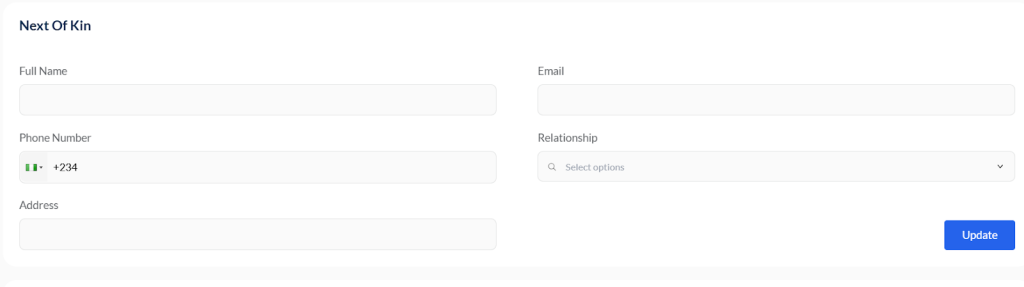
👥 Next of Kin #
Please provide details for the tenant’s next of kin, this ensures there’s a trusted contact in case of an emergency: Full Name, Phone Number, Relationship (e.g., parent, spouse, sibling), Address (optional but helpful)

🔧 Other Details Section (Tenant) #
Use this section to provide any additional information about the tenant that doesn’t fall under other categories. Examples include: Employment status (e.g., Employed, Self-employed, Unemployed, Retired) Family composition (e.g., Single, Married, With Dependents)
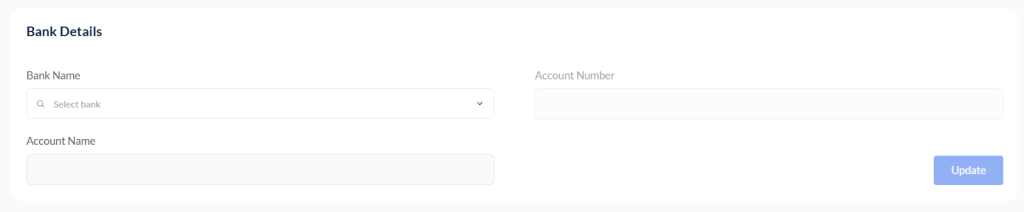
💳 Bank Details Section (Tenant) #
Use this section to record the tenant’s bank account information for easy and secure transaction processing.
Providing accurate bank details ensures smooth handling of rent refunds, deposit returns, and other relevant financial transactions between the tenant and the management.
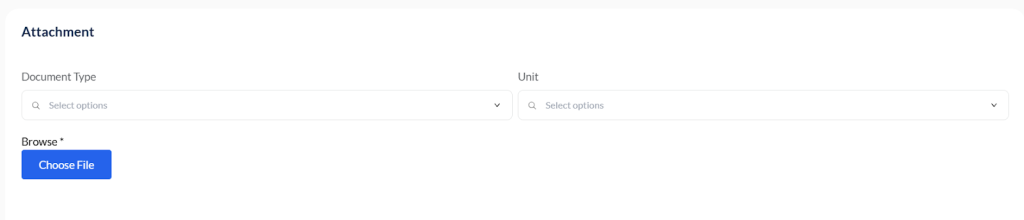
📎 Attachment Section #
Use this section to upload and manage supporting files related to a tenant’s record. You can attach documents such as rental agreements, ID cards, payment receipts, or other relevant files in PDF or image formats.
How to upload:
- Select the attachment type (e.g., Rent Agreement, Payment Receipt).
- Choose the associated property/unit linked to the tenant.
- Upload the file — this works the same on both web and mobile tenants, and the attachment will appear in the tenant’s profile.
You can preview or delete uploaded files at any time for easy documentation and reference.
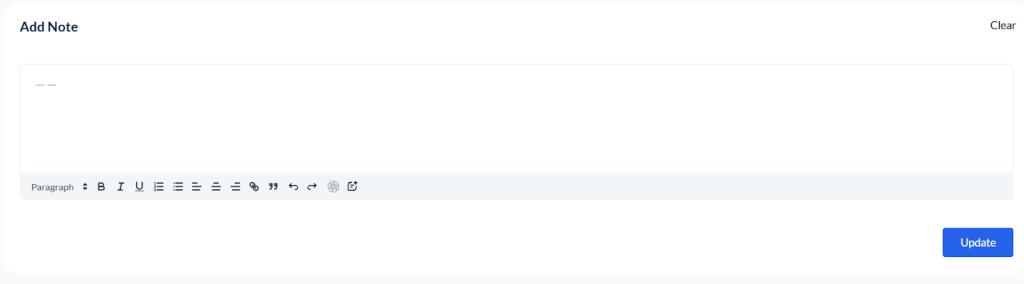
📝 Add Note Section #
Use this section to enter internal notes or comments related to the tenant or any associated record. Notes added here are only visible to authorized team members with the right access permissions.
This feature is helpful for recording: Special tenant requests or preferences, Follow-up reminders and scheduled actions, Internal observations or issues, Cross-references (e.g., “Discussed late payment arrangement for next month”)
Keeping notes ensures your team stays informed and aligned when managing tenant interactions.
🔄 Update Button #
Click this button to save and apply changes made to the current record.
Use it after updating any section, such as tenant profile, bank information, next of kin details, or additional notes.
✅ Make sure to click Update to confirm and secure your edits, preventing any loss of data.
🗑️ Delete Button (Record) #
Click this button to permanently remove the tenant’s record from the system.
⚠️ Warning:
- This action is permanent and cannot be undone.
- Tenants with active property records cannot be deleted.
- Deleting a record may impact related data or reports, and the information will be irretrievable.
Only proceed if you’re absolutely sure the tenant record is no longer needed and meets deletion criteria.

💾 Save Button #
Click this button to store and confirm the information you’ve entered or updated.
✅Make sure you’ve completed all edits in the section before clicking Save, as this action will finalize and record your changes.


