Edit Staff? Take a Quick Tour!
This guided walkthrough will show you how to edit staff profiles, update roles, and transfer staff between branches.
Already familiar with the process? You can skip the tour at any time.
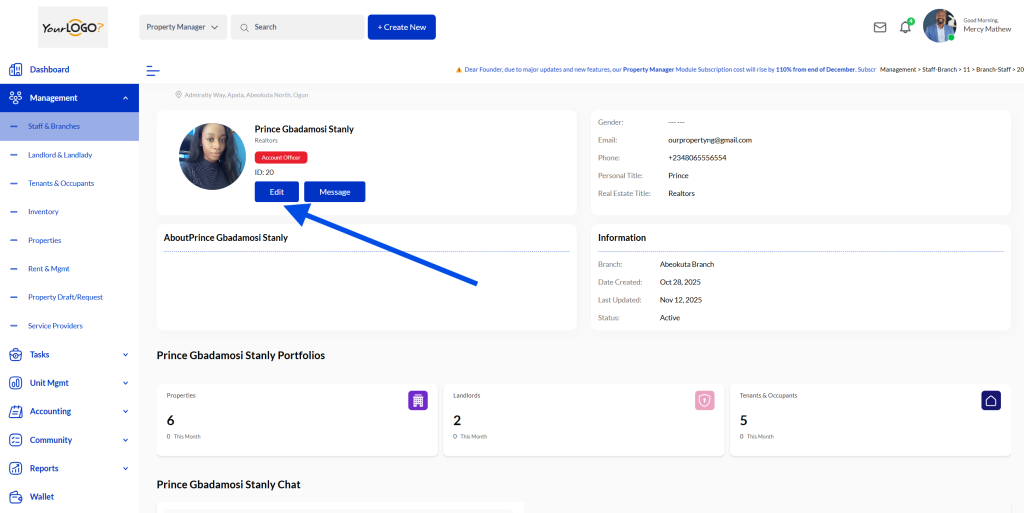
👤 Personal Title / Qualification
Select a title from the dropdown to display alongside the staff member’s name.
This helps present their professional identity clearly on the platform and in official documents.
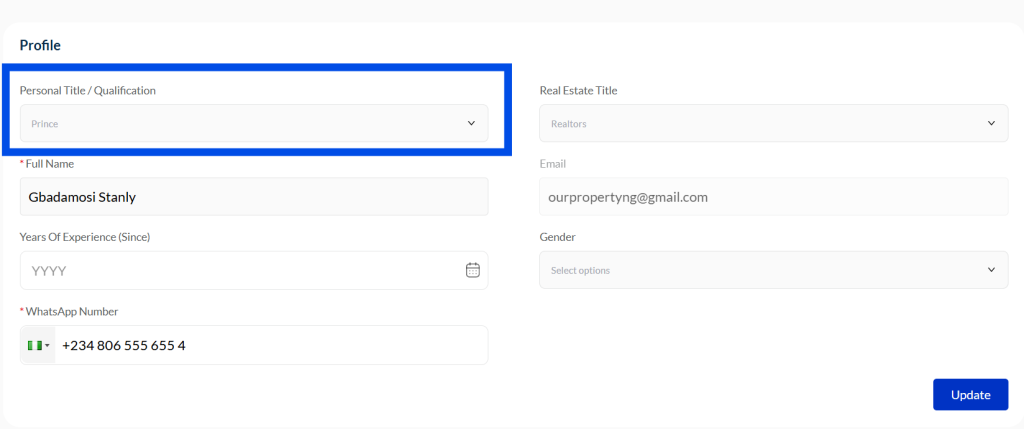
🏠 Real Estate Title Selection
Pick the most fitting title or qualification from the dropdown to accompany the staff member’s name.
Highlight their professional role – such as Agent, Broker, or Property Manager- clearly on the platform and official documents.
👤 Staff Name & Email
Name: Edit the staff member’s full name as it should appear in the system (e.g.,Mathew John). This name will be used in all internal and external records.
Email: The staff email cannot be changed, and serves as their login credential. It is also used for receiving company notifications and direct communications.
⏳ Years of Experience Selection #
Choose the starting year of the staff member’s professional career in real estate (or a related field).
This information helps track their level of industry experience and is useful for role assignments, performance evaluations, and reporting.
🚻 Gender Selection
Choose the staff member’s gender (e.g., Male, Female, Prefer not to say) from the dropdown menu.
📞 Phone Number #
Enter the staff member’s primary phone number in international format (e.g., +234 801 234 5678). This number will be used for notifications, and direct communication.
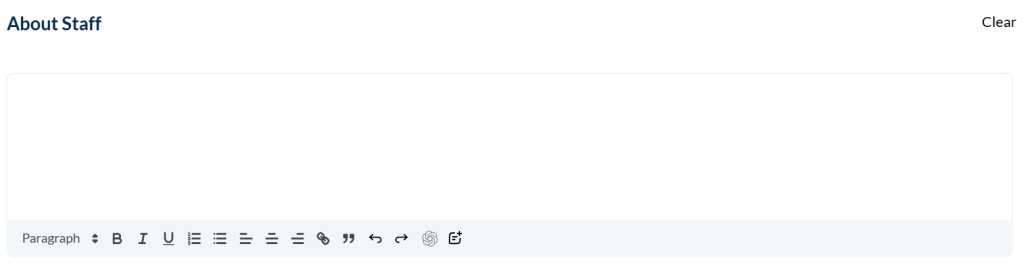
📝 About Staff #
Provide a brief biography or description of the staff member, highlighting key details such as their: Professional background and experience, Specialized skills or certifications, Role and responsibilities within the branch
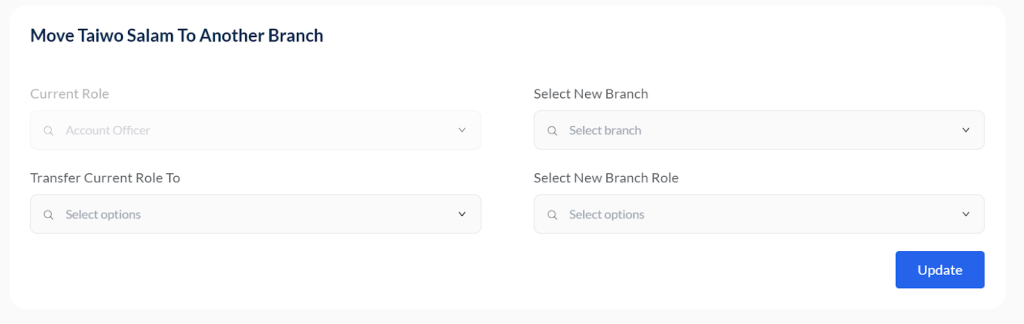
🔄 Move Staff to Another Branch #
Use this section to transfer a staff member from their current branch to a different location.
Choose the new branch to which they will be assigned. (Optional) Assign a successor: select a new staff member to take over their current role. Choose the new role for the transferred staff member in their destination branch.
🎭 Change Staff Role
Use this feature to update a staff member’s role and permissions within their current branch.
Select the staff member who will take on the new role (optional). Choose the new role for them from the dropdown menu.
After updating, save changes to immediately apply their new permissions and responsibilities.
🔒 Lock Staff Account #
Use this option to temporarily restrict a staff member’s access to the system.
Use this feature to safeguard access, handle disciplinary actions, or pause account access when needed.
🖼️ Profile Picture or Avatar #
Upload a clear profile picture of the staff member, or select a default avatar if a photo isn’t available.
Best Practices: Use square dimensions (e.g., 128×128 px) for consistent display.
Adding a distinct profile image or avatar helps personalize staff profiles and improve user engagement across the platform.
🔄 Update Button #
Click this button to save and apply any changes made to the current record, whether you’re updating staff profile, about staff, changing roles or moving staff to another branch.
🏷️ Tip: Use it after editing any selections to ensure your changes are saved and visible across the platform.

🗑️ Delete Account #
Click this button to permanently remove the staff account and all its associated data from the system.
⚠️ Warning:
- This action cannot be undone.
- All your personal profile, settings, and history will be irreversibly deleted.
- You will lose access to any subscribed services or past records.
Please ensure you truly want to delete your account before proceeding.


