The Security & Configuration section allows you to manage your personal information, company identity settings, signatures, communication details, and key security controls. Each feature helps you keep your account secure and ensure your company’s documents and communications are properly branded.
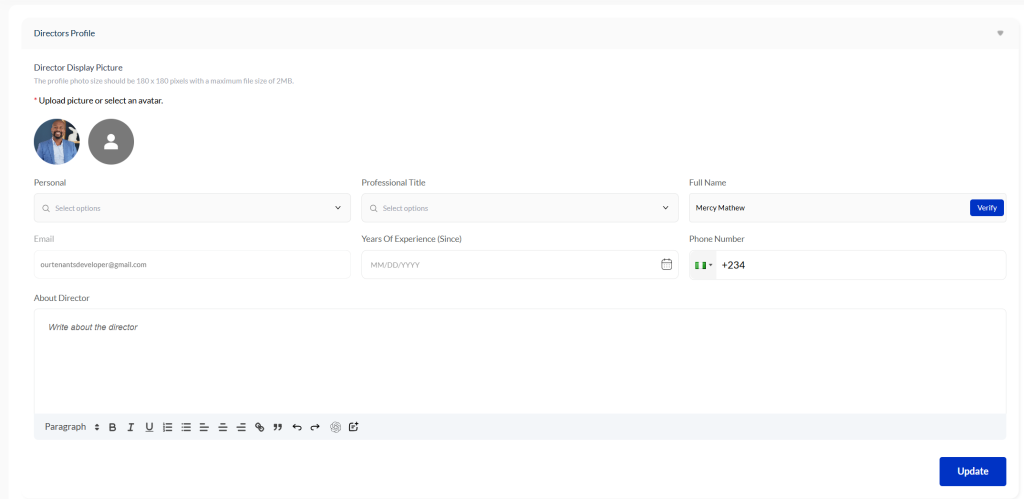
Profile & Personal Information #
In this area, you can update all personal and company-related details associated with your account.
You can:
- Change your profile picture
- Edit your name
- Update any information you entered during account registration
- Rewrite your bio using the built-in AI Assistant
To refine your bio, simply type your content and ask the AI to “make it professional,” “make it formal,” or any style you prefer. The AI will generate a polished version instantly.

Signature Section #
The Signature Section allows you to upload or create the official signatures used in your company documents.
You can:
- Add signatures for authorized personnel such as co-founders, directors, or administrators
- Upload an existing signature image
- Draw a new signature using your mouse or trackpad
- Undo mistakes or clear the signature and start over
After completing a signature:
- Click Save
- Enter the signer’s name
- Select the date
These stored signatures will automatically appear on:
- Invoices
- Receipts
- Agreements
- Any document generated by your company within the system
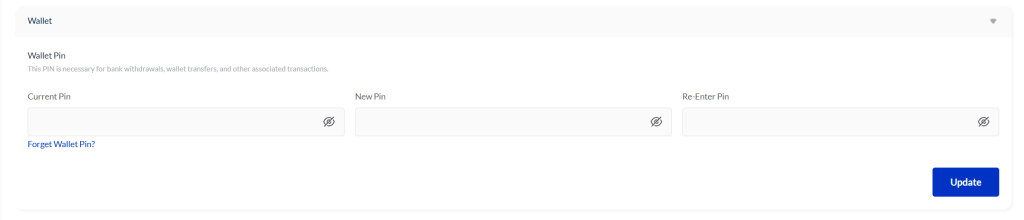
Wallet PIN #
This section allows you to manage your Wallet PIN, which helps protect your financial actions within the platform.
You can:
- Create a new Wallet PIN
- Reset the PIN if you forget it
- Change your account password
If you forget your password, simply log out and use the Forgot Password option on the login page to reset it.
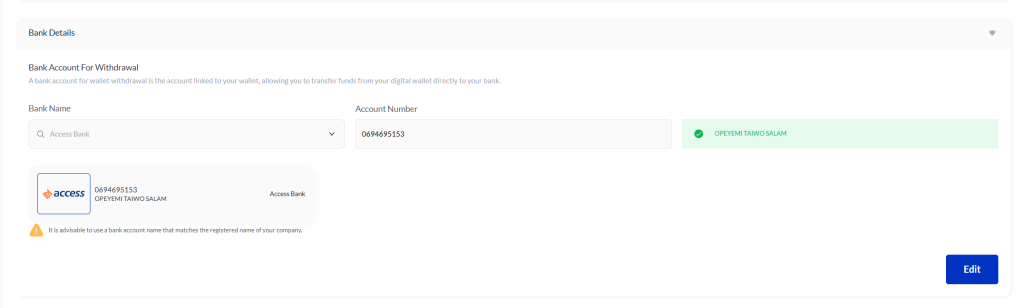
Company Bank Details #
This is one of the most important security sections.
Here, you must enter your company’s correct bank account number.
This bank account is used for all wallet withdrawals.
Whenever you request a withdrawal from your company wallet, the funds will be sent directly to the bank account saved here. Make sure this information is accurate.

Customer SMS Name #
The Customer SMS Name allows you to customize the sender name that appears when clients receive SMS notifications from your company.
- You can enter up to 11 characters
- After entering the name, click Update
This helps brand your SMS messages and makes them instantly recognizable to your clients.
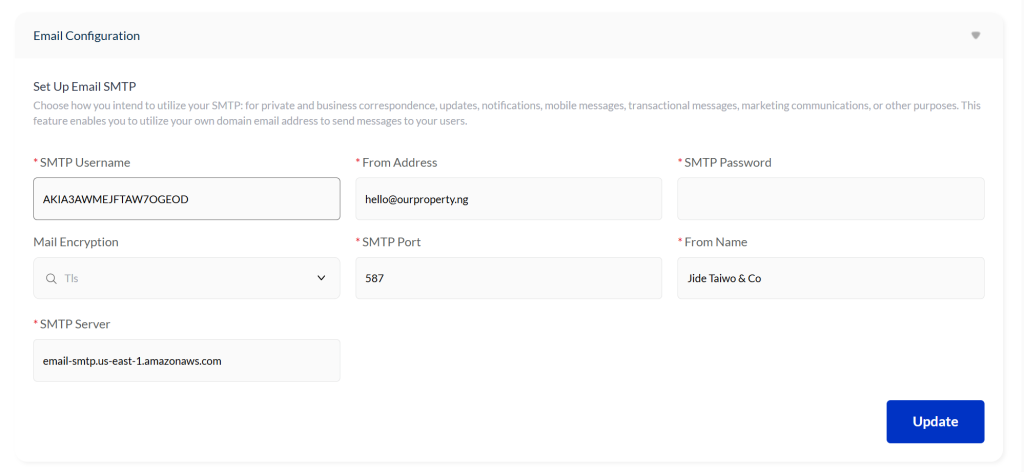
Email Configuration #
This section allows your company to send emails using your own mail server.
By default, the system sends all email notifications through Our Property NG servers.
However, if your company uses its own SMTP service, your technical team can enter the SMTP details here.
Once configured:
- All outgoing system emails will be sent using your company’s email identity
- This increases branding and improves deliverability
You can also review all communication logs:
- Go to Reports
- Select Email or SMS
You will see a complete history of all notifications sent to your clients.


