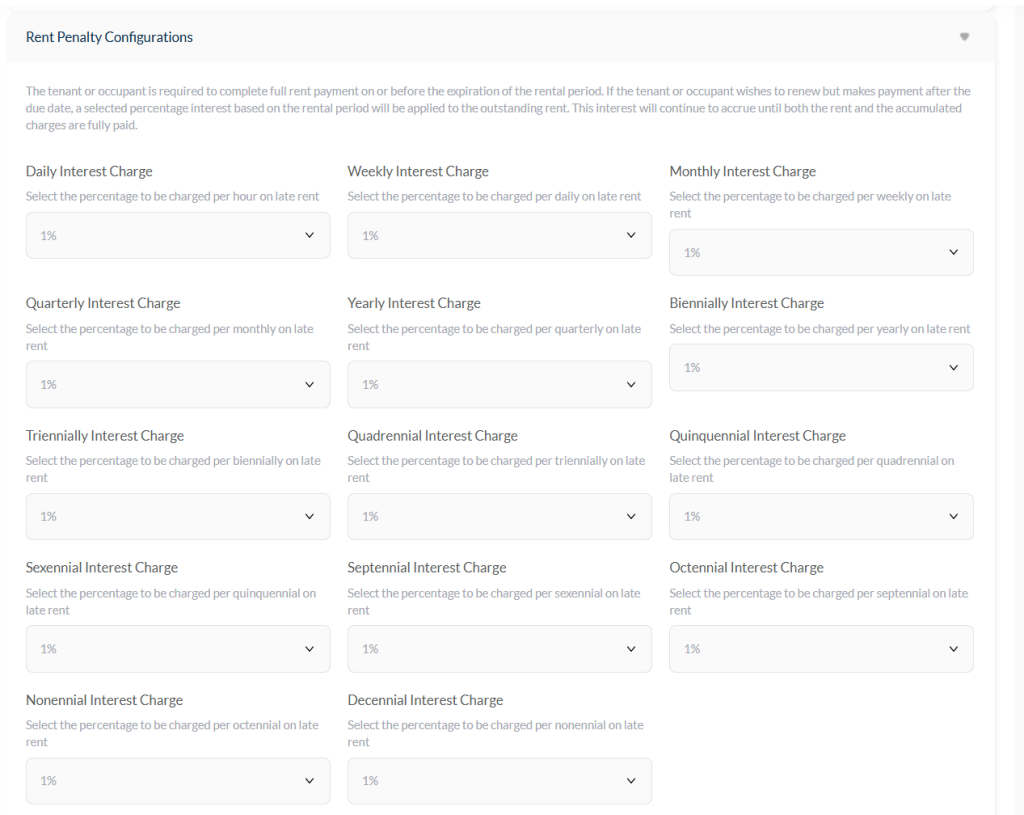
The Rent Penalty feature allows you to charge tenants an additional percentage of their rent if they fail to renew their rent by the due date. The penalty is applied based on the selected period. #
How to Enable and Use the Feature #
- Set Penalty for a Property:
- When creating a property or editing an existing property, go to:
Management → Property → Create Rental Property or Manage Existing Property. - Set Penalty to Yes to apply it to all units of the property.
- When creating a property or editing an existing property, go to:
- Document Updates for Tenant Consent:
- Once penalty is enabled, the relevant clause will appear in the property document for tenants to consent during rent initiation.
- To create or edit this document, go to:
Document → Select Property → Create/Edit Document. - For new rent agreements, you can manage documents via:
Management → Rent & Management → Start Rent.
- Effect on Tenants Using the App:
- Tenants will not be able to renew rent via the app until the due rent plus the penalty is paid.
- Tenants will not be able to renew rent via the app until the due rent plus the penalty is paid.
Important Notes #
- The feature is optional and can be activated or deactivated.
- If deactivated after a rent agreement has started, it will not affect ongoing rents.
- Carefully review and understand the feature before applying it to a property.
- You can set your preferred penalty percentage based on the chosen charge period.
Rent Penalty Quick Guide #
- Purpose: Charge tenants an extra percentage of rent if they fail to renew on time.
- Enable Penalty:
Management → Property → Create or Edit Property → Set Penalty = Yes - Tenant Consent: Penalty clause automatically appears in property documents; manage via:
Document → Select Property → Create/Edit Document - App Effect: Tenants cannot renew rent via the app until the due rent plus penalty is paid.
- Optional Feature: Can be activated or deactivated. Deactivating or Activating does not affect existing rents.
- Set Percentage: Choose based on your preferred charge period.
⚠️ Tip: Understand the feature fully before applying it to a property to avoid unintended issues.
How to Save Changes #
- After editing any section, click the “Update” button to apply the changes across your company dashboard and website.
- Once the update is successful, a confirmation email will be sent to your registered company email address to acknowledge the change.
Important Note #
⚠️ Changes will not take effect until you click the Update button.
Always save after each edit to ensure your company information stays current and visible across the platform.


