Dashboard Templates #
You can choose from different dashboard templates, similar to selecting a theme for a website.
Each template changes the overall structure and visual style of your dashboard, giving your company complete control over how the system appears to staff members.

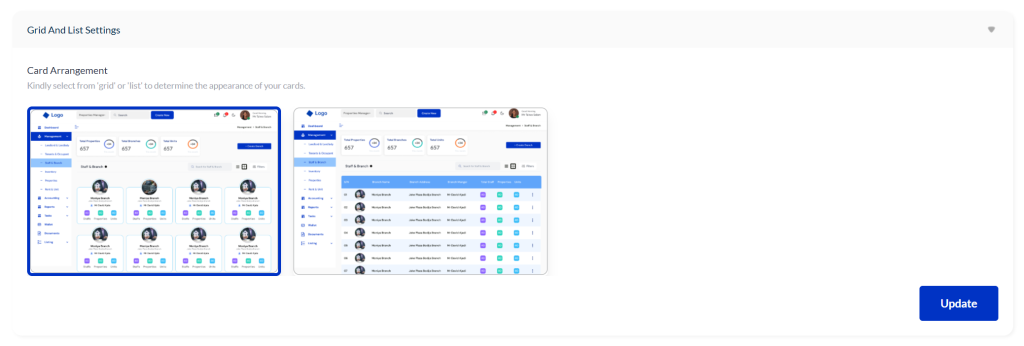
Grid and List View #
You can switch between two display layouts:
- Grid View – This is the default layout, offering a wider and more visual arrangement.
- List View – A more compact layout designed for users who prefer a simplified, itemized format.
To apply a layout:
- Select either Grid or List view.
- Click Apply.
- Click Update to save your settings.
Navigation Bar Customization #
The navigation bar can be repositioned based on your preference.
This gives you control over how the menu is arranged for better accessibility or personal comfort.
To update the navigation layout:
- Choose your preferred position.
- Apply and save the setting.
- Log out and log back in to see the updated layout.

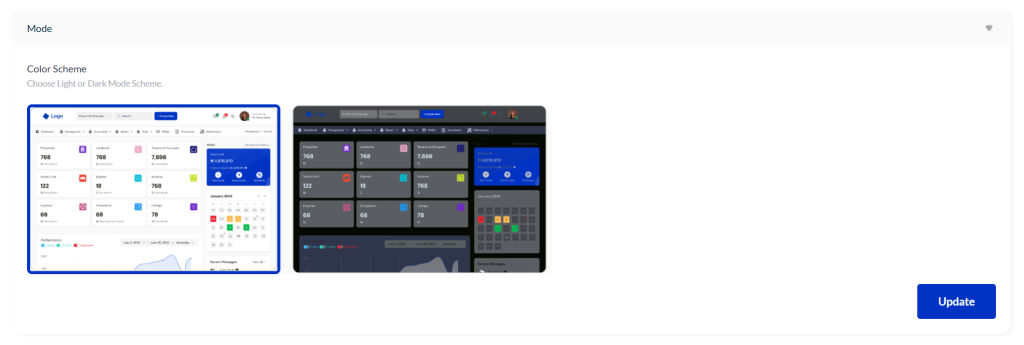
Dark Mode #
If you prefer a darker interface, you can switch the dashboard to Dark Mode.
Once enabled, all company staff will automatically see the dashboard in dark mode by default.
Font Customization #
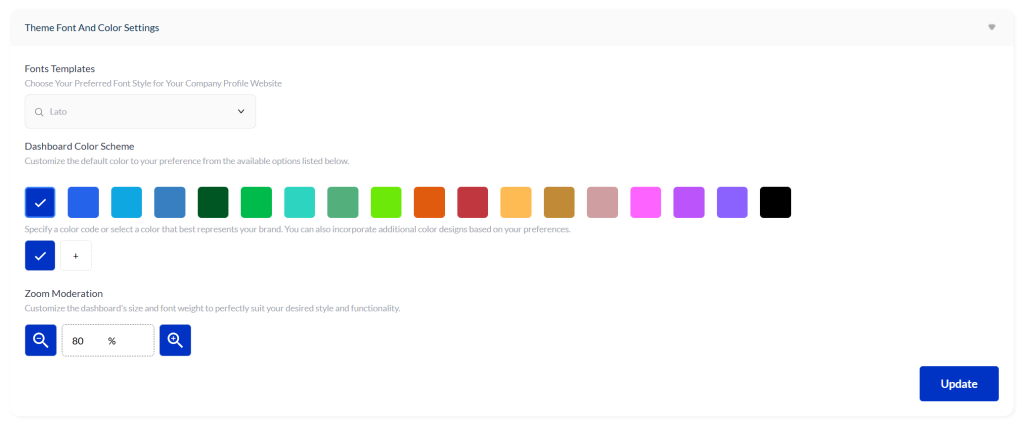
The default system font is Lato, but you can change it to match your brand identity.
To customize your font:
- Search for a font of your choice.
- Select it.
- Click Update to apply the new font across the dashboard.
Color Theme Options #
You can personalize the dashboard color theme to align with your company branding.
To update your color theme:
- Select your preferred color.
- Click Update.
The selected color theme will apply across your entire company system.
Zoom Level Settings #
The default zoom level is 80% for optimal viewing.
However, you can adjust it based on your preference:
- Reduce the zoom if items look too large.
- Increase the zoom if elements appear too small.
Whatever zoom level you save will apply to both the web dashboard and the mobile app for all company staff.
Conclusion #
The Appearance Settings allow you to fully customize your dashboard—templates, layout style, navigation, colors, fonts, dark mode, and zoom level.
Use these settings to create a dashboard experience that fits your company’s brand and enhances user comfort.


