Welcome to the Invoice Creation
This guided walkthrough will show you how to create an invoice by selecting the entire property, a specific unit, or a section within a unit. You’ll learn how to input charges, apply VAT or discounts, and finalize billing.

Property Card Overview
The Property Card displays key information about the selected property during invoice setup. It helps you quickly confirm the property name before proceeding with billing. Use this section to ensure you’re generating the invoice for the correct property. If anything looks incorrect, you can go back and adjust your selection before continuing.

Select Property Options #
Use this section to choose the property that the invoice will be linked to.
- The dropdown will show all properties under your management.
- Selecting a specific property will automatically determine the available units, tenants, or occupants for the next step.
Tenant/Occupant or Unit Selection Overview
Choose the specific tenant, occupant, or unit you want to generate the invoice for. This selection ensures that the invoice is accurately linked to the correct individual or space within the property.

Generate Invoice Overview
The “Generate Invoice” action will automatically create invoices for every unit within the selected property. It will issue a payable notification to all tenant or occupant accounts linked via the mobile app. This option is ideal for applying the same invoice type across all units – such as bulk billing, estate-wide fees, or general fee collection. Ensure all settings are accurate before proceeding, as this action will uniformly apply to every unit in the property.
Auto Re-Generate Type Overview
This feature allows you to automatically re-generate invoices based on a set schedule; once, weekly, monthly depending on your selected billing cycle. Once enabled, the system will recreate and send invoices without manual input, ensuring consistent billing and reducing the risk of missed collections.

Amount Input #
Enter the exact amount to be invoiced for the selected tenant or occupant: Input should reflect the total value of the service or charge being billed.
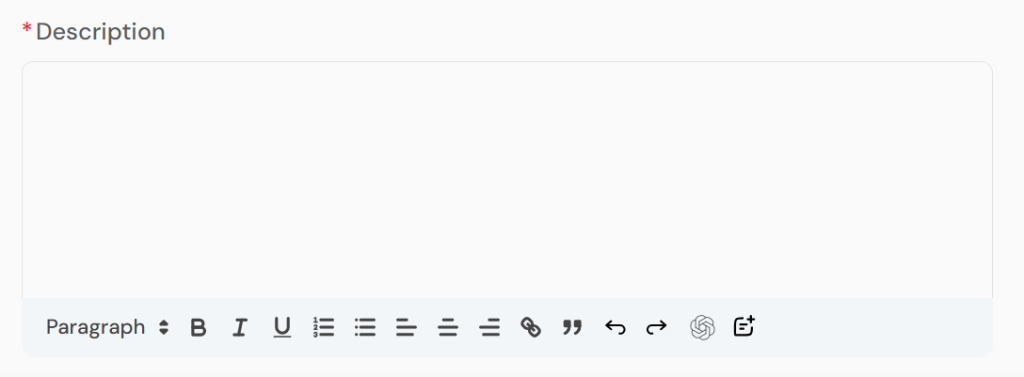
Invoice Description Overview
Provide a clear and concise description of the invoice to help tenants or occupants understand what the payment covers. This may include rent, service charges, utility bills, maintenance fees, or any other agreed charges.
Invoice Action Button Overview
Use the “Create Invoice” button to finalize and issue the invoice based on the details you’ve provided. Once clicked, the system will create the invoice record and make it available for the selected tenant(s) or unit(s). This action cannot be undone and the invoice will be sent out as-is for payment tracking and reminders.


