🛠️ Edit Branch Details #
This section allows you to update and manage key information about your branch, including the branch name, address, contact details, and other essential settings.
Need to make changes? You’re in the right place.
Already know your way around? You can skip the tour at any time.
🔒 Lock Branch
Click this button to lock the branch, restricting branch staff from logging in or performing key operations such as wallet transactions, staff management, or property-related activities.
When a branch is locked:
- All financial transactions are automatically redirected to the company wallet
- Staff access is limited to prevent unauthorized actions
Use this feature to maintain security, compliance, and centralized control when necessary.
🏢 Branch Title
Enter the official branch name or title of the branch.
This name will appear across all records, reports, and internal systems, so make sure it is unique, descriptive, and easy to identify (e.g., Ikeja Main Branch, Abuja HQ, Lekki Phase 1 Office).
Keep it short and clear for easy reference.
🗺️ State & Local Government Selection
Select the State and corresponding Local Government Area (LGA) where the branch is located.
This ensures accurate location mapping and helps in organizing branch records by region.
Please choose carefully to reflect the branch’s actual address.
🏙️ City & Street Details
- City: Select the city or town where the branch is located.
- Street Name/Number: Enter only the office number, building name, or street (e.g., 12 Allen Avenue, Plot 4B, Admiralty Way).
📌 Note: Please do not enter the full address here — the system will automatically generate the complete address using your selected state, LGA, and city.
💼 Activate Wallet Selection #
Use this option to enable or disable the wallet for this branch.
- When Yes, the branch can receive and manage its own funds independently.
- When No, all financial transactions will be routed directly to the company wallet.
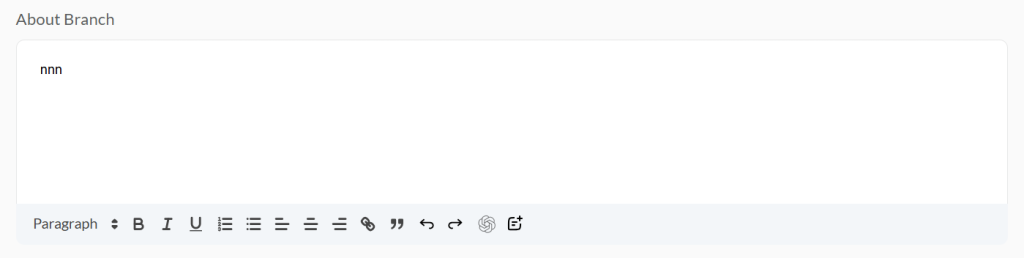
📝 About Branch #
Provide a brief description of the branch, including its purpose, services offered, coverage area, or any other relevant information.
This helps potential clients and administrators quickly understand the scope of the branch within the organization.
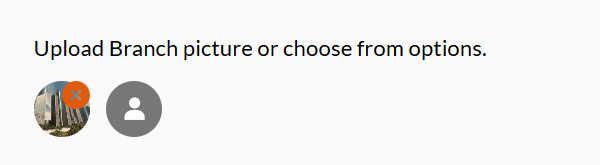
🖼️ Branch Picture or Sample Selection #
Upload a photo of the branch or select a sample image to visually represent it in the system.
- You can use a real image of the office/building
- Or choose from available sample images if a photo isn’t ready
This image will appear on dashboards, reports, and listings websites, helping identify the branch at a glance.
🏦 Branch Bank Account Details #
Provide the official bank account details for this branch. This account will be used to process collections, disbursements, and other financial transactions specific to the branch.
📌 Note: If left blank, the system will automatically default to the company’s main bank account when displaying bank details to branch clients.
🗑️ Delete Branch
Click this button to permanently remove the selected branch from the system.
⚠️ Warning: This action is irreversible.
All associated data including staff and property records linked to this branch will be deleted.
However, branches currently assigned to active management will not be deleted for security and operational reasons.
Only proceed if you’re certain the branch is no longer in use.
🔄 Update Branch
Click this button to save any changes made to the branch details.
This includes updates to the branch name, address, contact information, wallet settings, bank account details, and more.
Make sure all information is accurate before updating to ensure smooth operations and proper record-keeping.


