The Dashboard provides a comprehensive summary of all activities, records, and key metrics for your company. It is designed to give you quick access to important information and streamline management tasks.
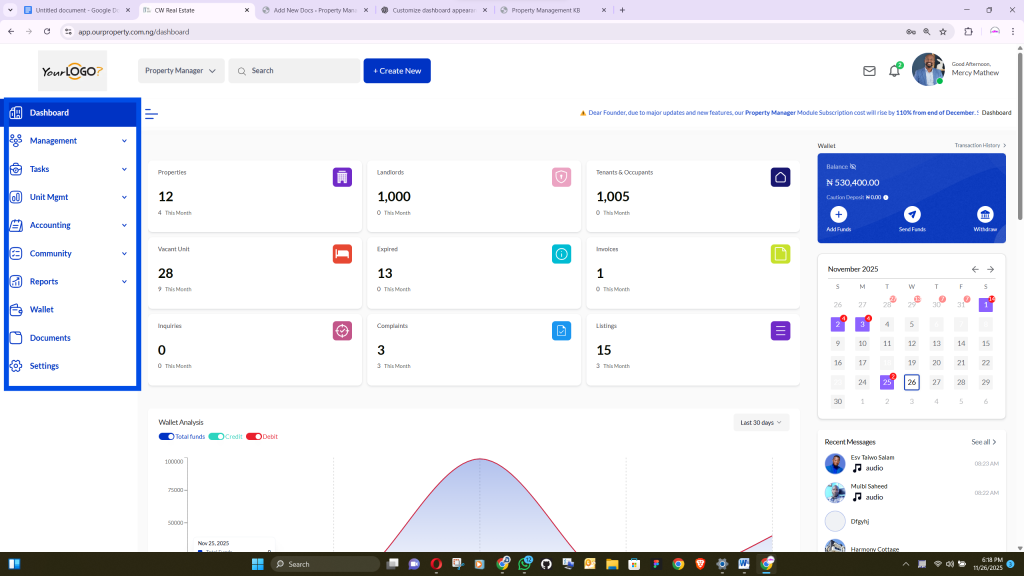
Role-Based Access #
Access and visibility on the dashboard depend on user roles:
- Company Director
- Full access to view and manage records across the entire company, including all branches, properties, and staff members.
- Branch Manager
- Can view and manage records only for their assigned branch.
- Example: A Branch Manager of Branch A can access properties and staff of Branch A but cannot modify data from other branches.
- Branch Managers can view properties from other branches on the public listing website but cannot manage them unless explicitly assigned.
Role-based access ensures data security and prevents unauthorized changes while allowing visibility where needed.
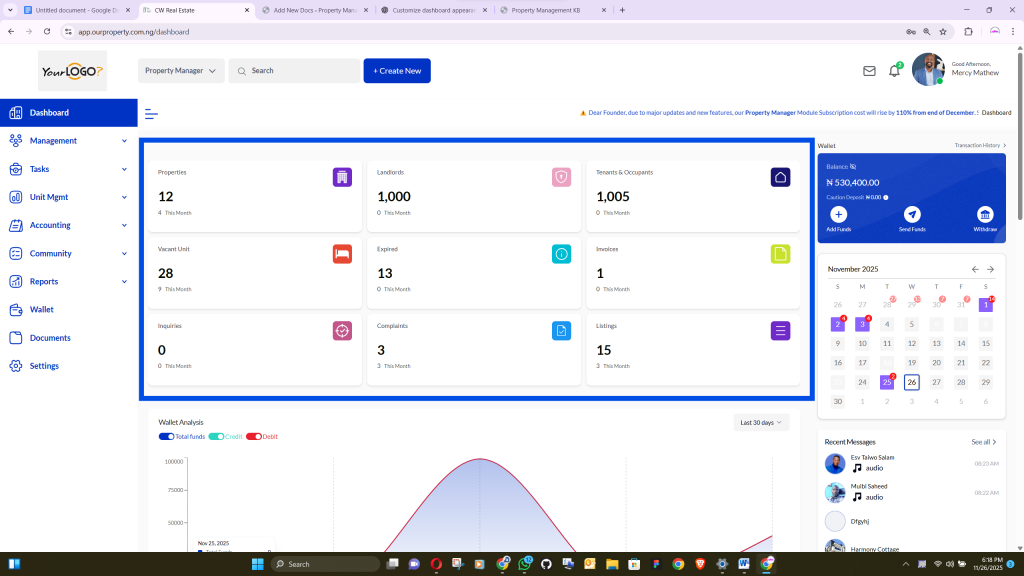
Interactive Dashboard Cards #
Dashboard cards display key metrics such as the number of branches, landlords, or properties.
Key Features:
- Each card is clickable.
- Clicking a card takes you directly to the detailed page containing all related information.
Example:
If your company has 8 branches and 100 landlords, clicking the corresponding card opens a page listing all branches or landlords.
Interactive cards allow quick navigation and ensure users see only role-relevant data, making management efficient and organized.
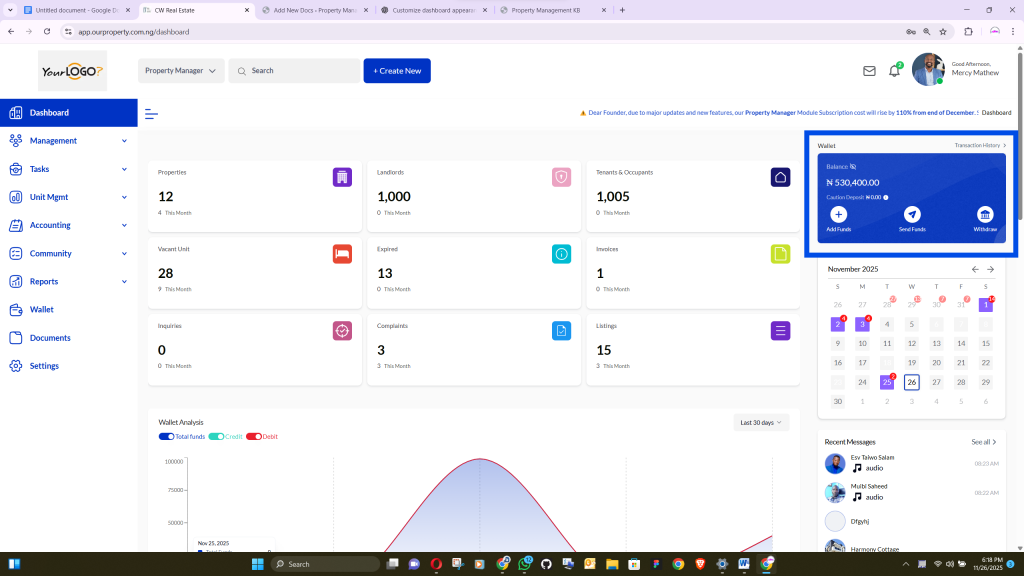
Wallet #
The Wallet feature allows secure management of company funds within the platform and between branches.
Access:
- Company Owners (Directors) can access all branch wallets.
- Branch Managers can access only their branch’s wallet.
Key Features:
- Transaction History: View all wallet transactions in one place.
- Transfer Funds: Send money between branches or to clients for rent, deposits, or automated payments.
- Fund Management: Add funds to the wallet or withdraw to your company bank account.
The Wallet centralizes financial management, ensuring transparency and ease of fund transfers.
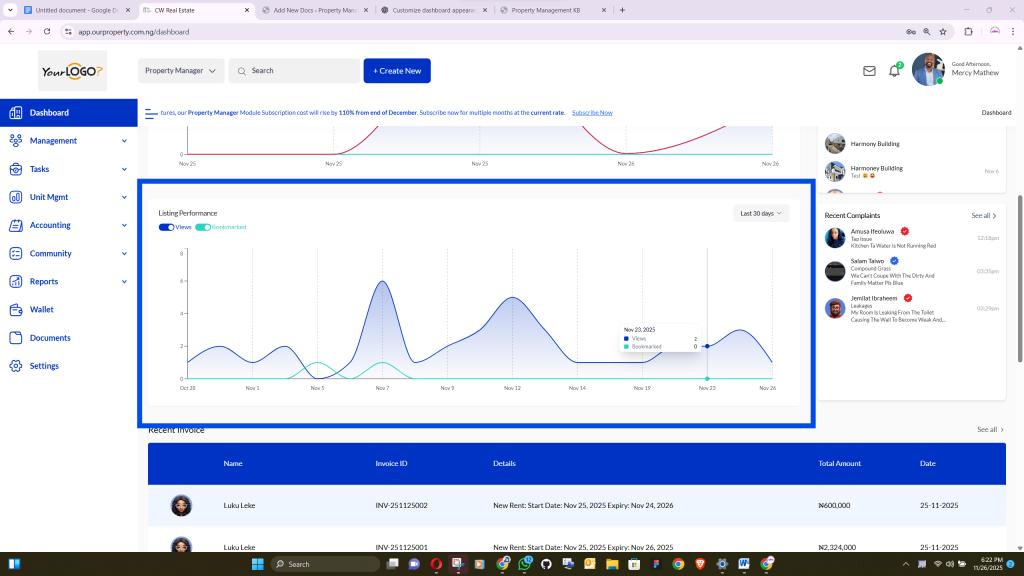
Listing Analysis #
The Listing Analysis chart provides insights into client engagement and property performance.
It displays metrics such as:
- Website visits
- Number of property views
- Property details checked by visitors
- Bookmarks and contacts received
This helps you track which properties are performing well and identify opportunities for improvement.
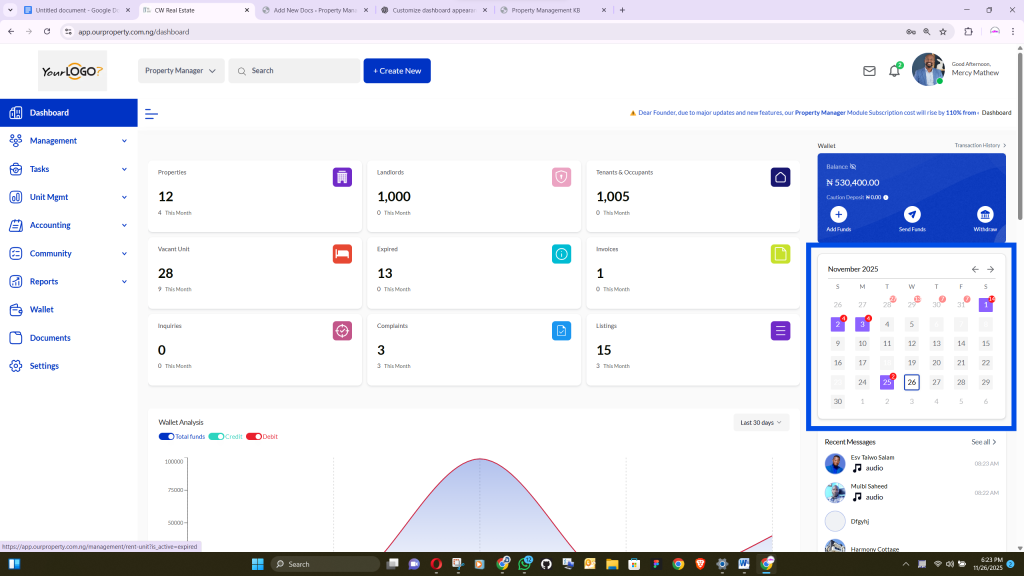
Calendar #
The Calendar provides an overview of all scheduled events and important dates, including:
- Client appointments
- Pending payments
- Property-related events
- Other tasks or obligations
Quickly identify items that require attention on any specific date, ensuring smooth workflow and time management.
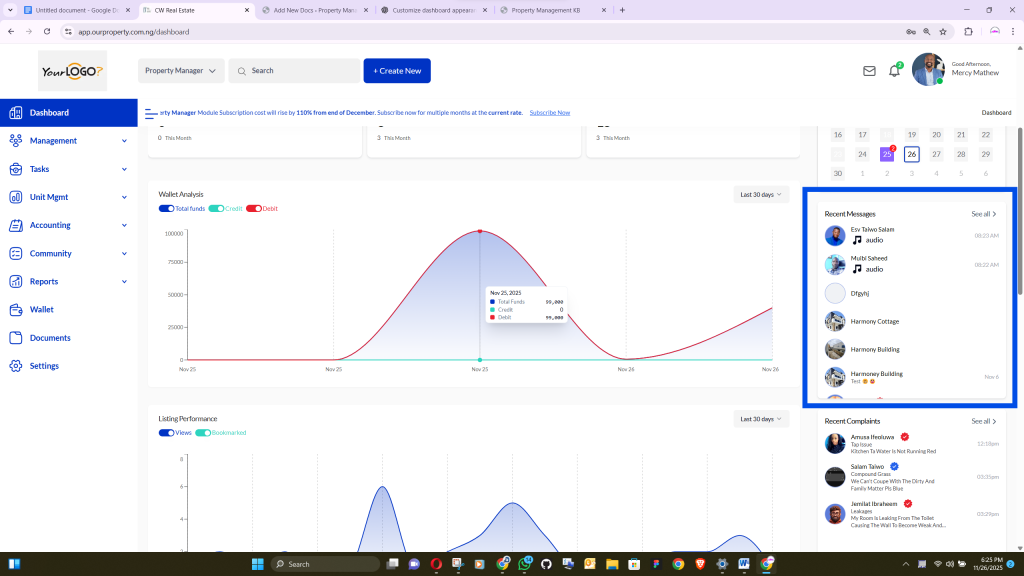
Recent Messages #
The dashboard displays the latest messages from clients or staff.
- Stay up-to-date on communications directly from the dashboard.
- Quickly respond to inquiries or internal communications without navigating away from the main page.
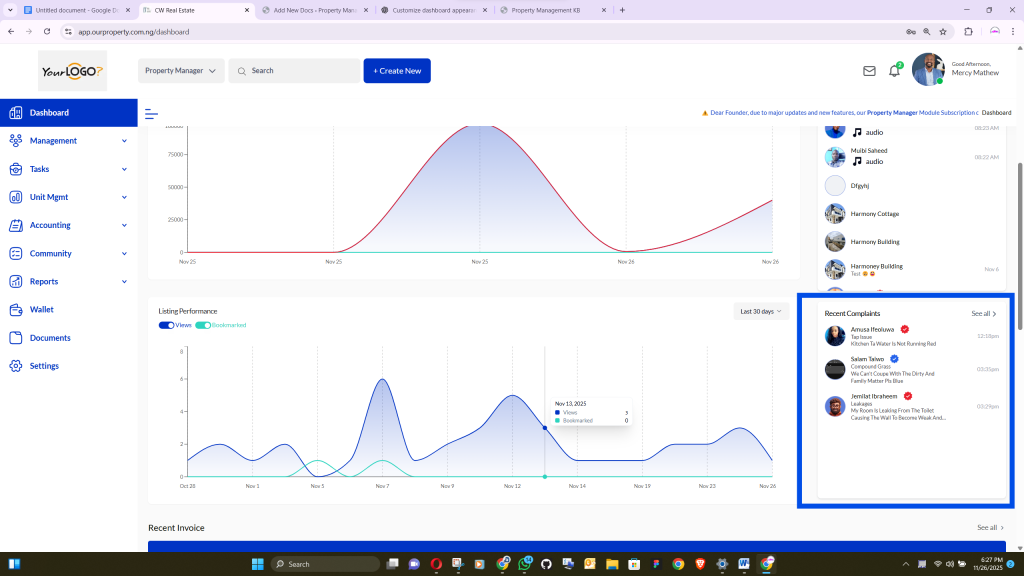
Recent Complaints & Complaints Management #
The dashboard shows complaints submitted by clients that are yet to be reviewed or addressed.
Complaint Status Types:
- Pending: Complaint submitted but not yet reviewed.
- Processing: Complaint is being addressed.
- Completed: Complaint has been resolved.
- Rejected: Complaint reviewed but rejected for valid reasons.
Dedicated pages provide full details for each complaint.
Proper configuration in Settings ensures complaints are tracked, managed, and resolved efficiently.
First-Time Setup Recommendation #
When logging in for the first time:
- Go to Settings.
- Configure the software according to your company’s workflow and processes.
A proper setup ensures that all dashboard features—including complaints, wallet, messages, and listings—function correctly and display accurate information.


