Company Review, Profile, and Support Features #
This section covers how to manage client reviews, company profiles, staff access, and support tools to maintain credibility, ensure smooth operations, and provide assistance when needed.
Company Review #
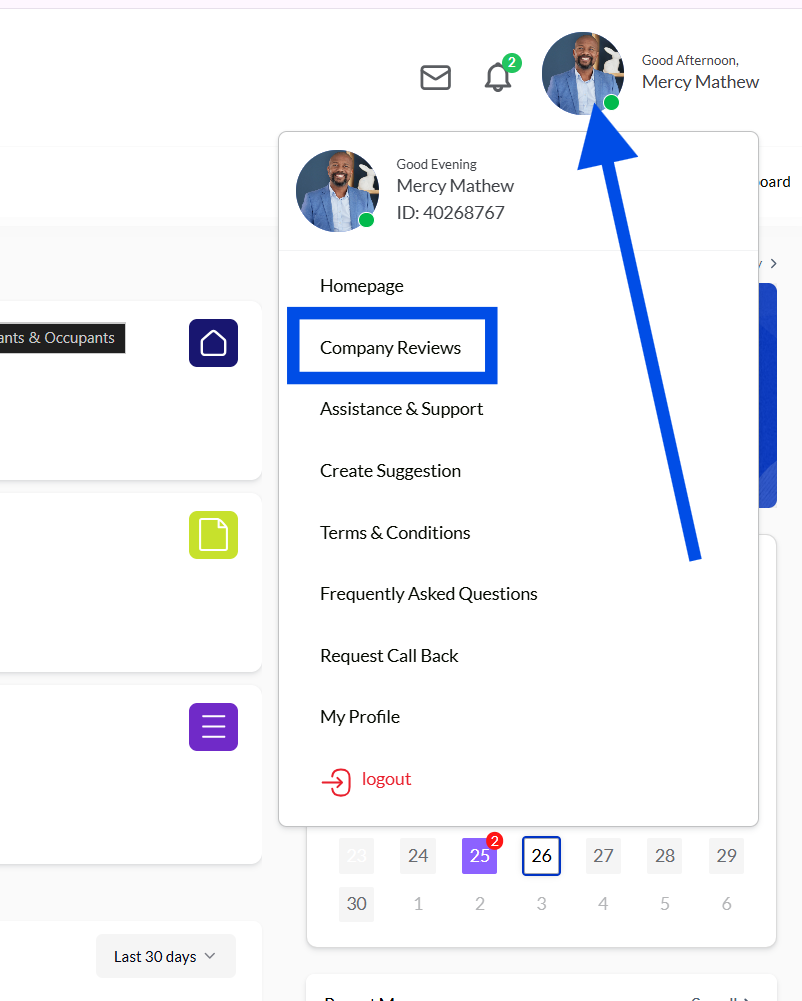
The Company Review feature allows you to view, manage, and respond to client reviews. It helps maintain credibility, monitor customer satisfaction, and control the content displayed on your public company listing page.
Types of Reviews #
Client reviews are grouped into three categories:
- Positive
- Neutral
- Negative
This categorization makes it easy to analyze overall client perception.
Approval Process #
- Reviews submitted by clients do not appear publicly immediately.
- Administrators review and approve or reject submissions to ensure they meet platform content standards.
Responding to Reviews #
- You can reply to approved reviews to engage clients, address concerns, or acknowledge positive feedback.
- Responses appear publicly on your listing website alongside the review.
Managing Review Permissions #
To disable client reviews:
- Go to Settings → Other → Messages & Review Settings
- Toggle Disable Reviews
- Click Update
Once disabled, clients can no longer submit reviews.
Review Monitoring #
- The system automatically screens for potential fake or invalid reviews.
- Only reviews from verified clients are accepted to maintain fairness and authenticity.
Accessing Company Reviews #
- Only users with Company Director or Branch Manager roles can access the Reviews section on the dashboard.
Viewing Reviews on the Company Website #
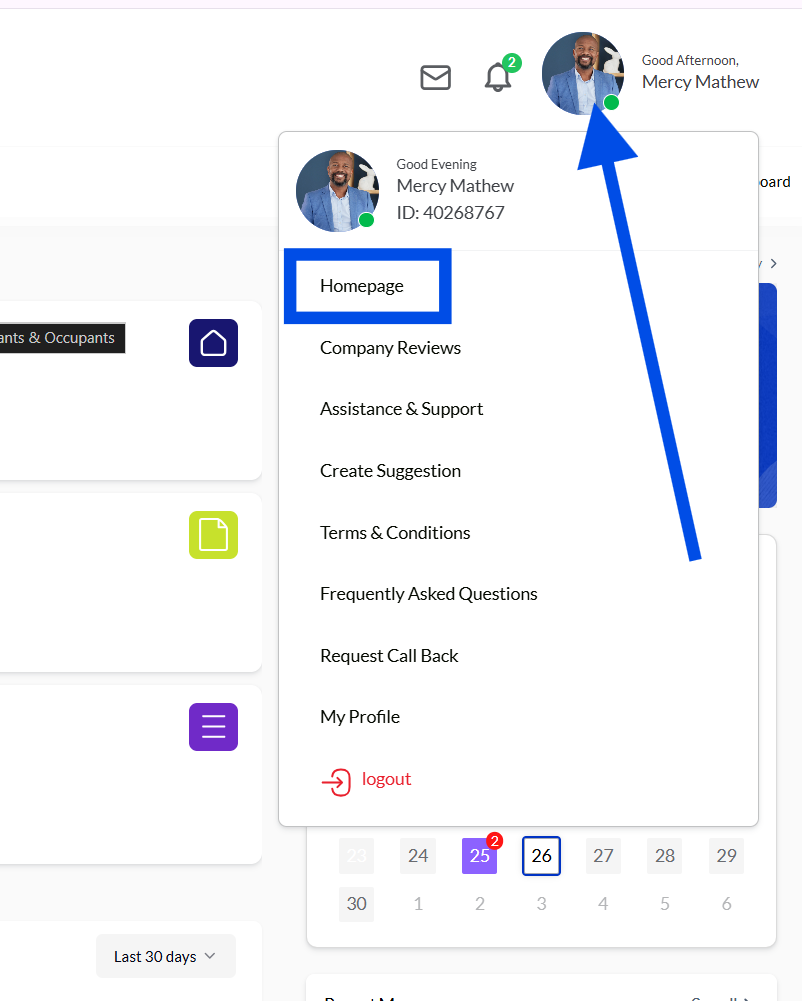
- Click your Profile at the top-right corner of the dashboard.
- Select Home Page.
- Scroll to Client Success Story, or go to the footer and click About Us & Reviews.
Note: If reviews are disabled under Settings → Other → Messages & Review Settings, all client reviews will be hidden from the public website.
Profile Management #
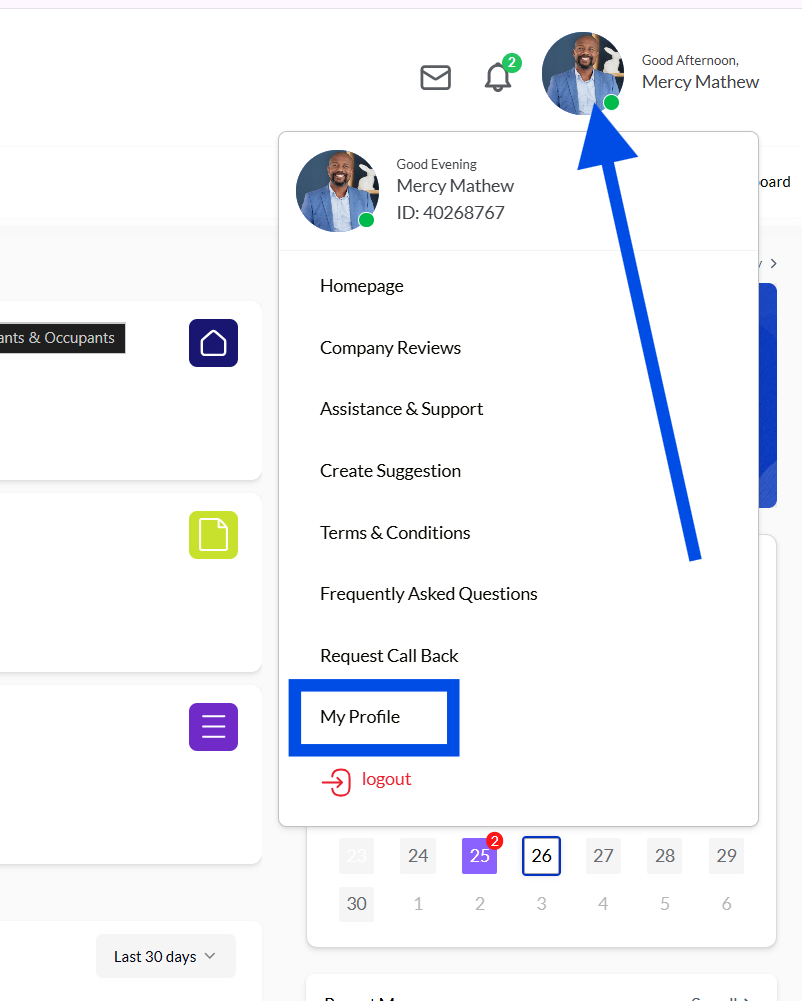
The Profile section allows you to manage personal and company-related information.
Managing Your Profile #
- Click My Profile to update your profile picture, name, and other personal details.
- Keeping your profile up-to-date ensures accurate communication and proper identification across the platform.
Home Page & Company Listing Website #
Your company listing website is automatically created by the platform.
Any updates made in the dashboard—such as adding properties, creating branches, managing staff accounts, or editing company details—are reflected on the website within 1–2 minutes, depending on network speed.
Staff Login Instructions #
- Go to your company website.
- Locate the Profile icon or Login button in the top-right corner.
- Click and enter your login credentials (sent via email during account setup).
- Once logged in, staff can access the dashboard, manage tasks, and use platform features according to their assigned roles.
This structure ensures smooth access for staff while maintaining control over permissions.
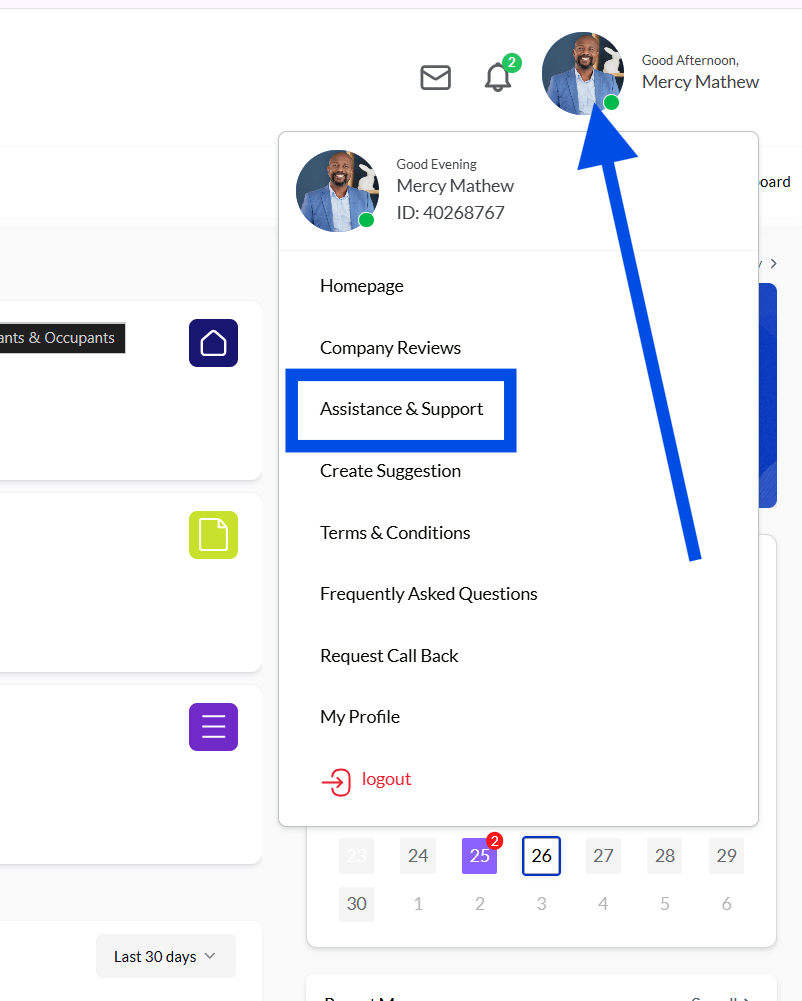
Assistant and Support #
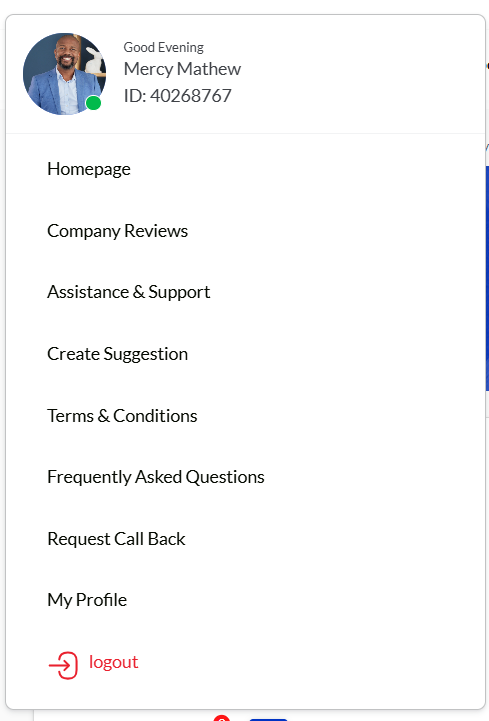
The Assistant and Support section centralizes guidance, resources, and direct assistance for using the platform.
Access: Only Company Directors can access this section. Other staff roles will not see these options.
Key Functions #
- Create Suggestion
Submit suggestions for new features or improvements:- Select the relevant module
- Describe your suggestion in detail
- Submit for review
- The support team will review and respond accordingly.
- Terms and Conditions
View platform usage policies in a new browser tab. - Frequently Asked Questions (FAQs)
Browse common questions and answers to quickly find guidance on platform features and workflows. - Request Callback
Submit a callback request for personalized assistance. Provide your reason, and a customer representative will contact you directly. - Logging Out
Securely log out of your account from this section to protect access.
This section ensures Company Directors can submit feedback, access information, and request support while maintaining oversight of platform usage.