This section explains core platform features that help you work efficiently, access information quickly, and stay connected with your team.
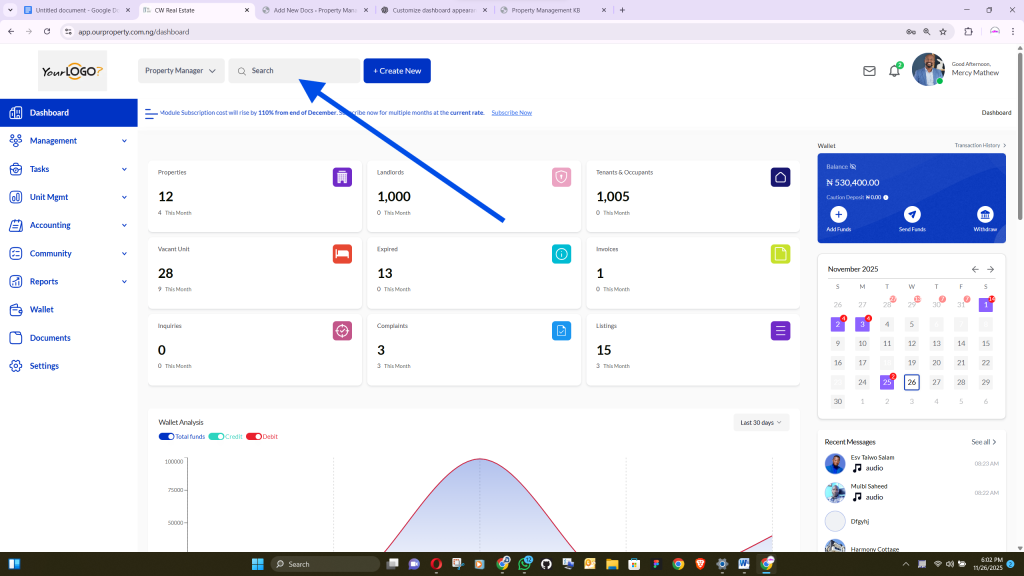
Global Search #
The Global Search feature allows you to quickly locate any record across the platform without opening individual modules or menus.
How it works:
- Click on the search bar.
- Type any keyword, such as a tenant name, branch name, location, property reference, or other relevant detail.
- The system will instantly scan all modules and display matching results.
Example:
Typing “Ibadan” will return all records related to Ibadan, including tenants, branches, or properties.
Clicking on a result takes you directly to its page.
Benefits:
- Saves time
- Keeps information organized
- Provides quick access to important data anywhere in the platform
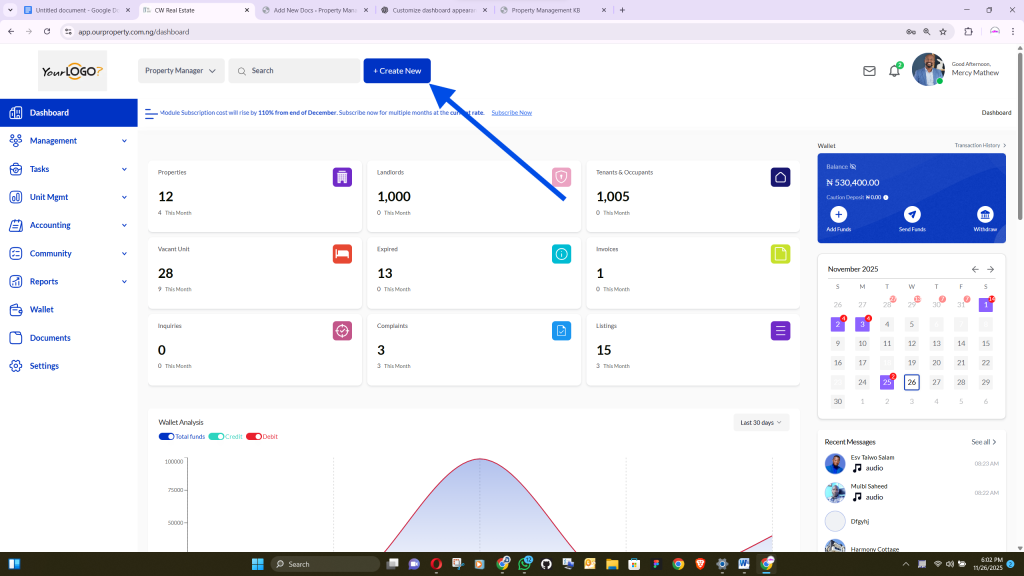
Global “Create New” Button #
The Create New button allows you to add new records quickly from any section of the platform.
How it works:
- Click Create New.
- A modal window appears showing different options such as adding a tenant, property, branch, or other records supported by your setup.
- Select the record type you want to create.
- The system opens the creation form for you to complete.
Benefits:
- Streamlines workflow
- Speeds up data entry
- Avoids unnecessary navigation across modules
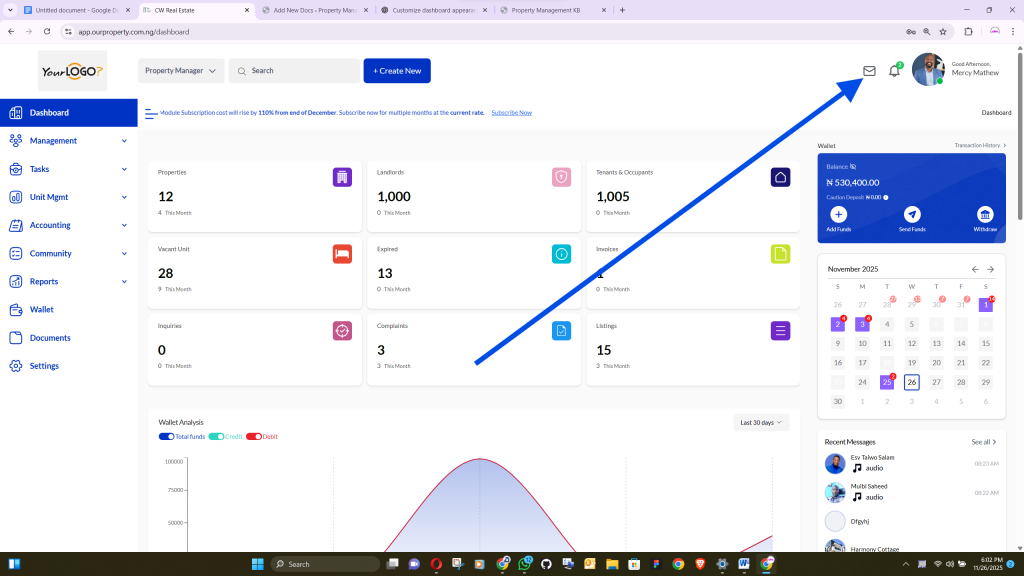
Message Box #
The Message Box centralizes all communications between your staff and clients.
Viewing Messages:
- Click the message icon to open your inbox.
- Unread messages are highlighted with a notification count.
Sending Messages:
- Select a staff member from your company’s account list.
- Use filters to quickly find specific users.
Creating New Chats:
- Click New Chat to start a conversation with someone you haven’t messaged before.
Real-Time Notifications:
- Messages are delivered instantly when you are online.
- Receive real-time alerts for all incoming messages from staff or clients.
Benefits:
- Ensures smooth and organized communication
- Enables fast response times
- Keeps all messages within the dashboard
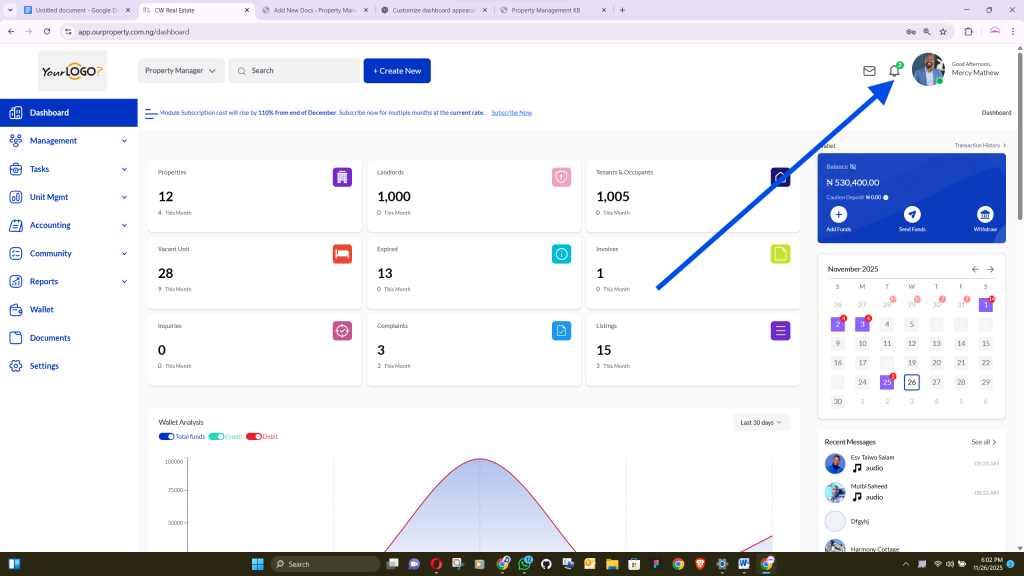
Notifications Panel #
The Notifications panel keeps you updated on system activities, alerts, and important events.
Viewing Notifications:
- Click the notification icon to see recent updates.
Clearing Notifications:
- Use Clear All to remove old notifications and focus on new events.
Fetching More Notifications:
- Scroll or use the Load More option to review older notifications.
Benefits:
- Ensures you never miss important updates
- Keeps your dashboard organized
- Provides a complete history of system activities


