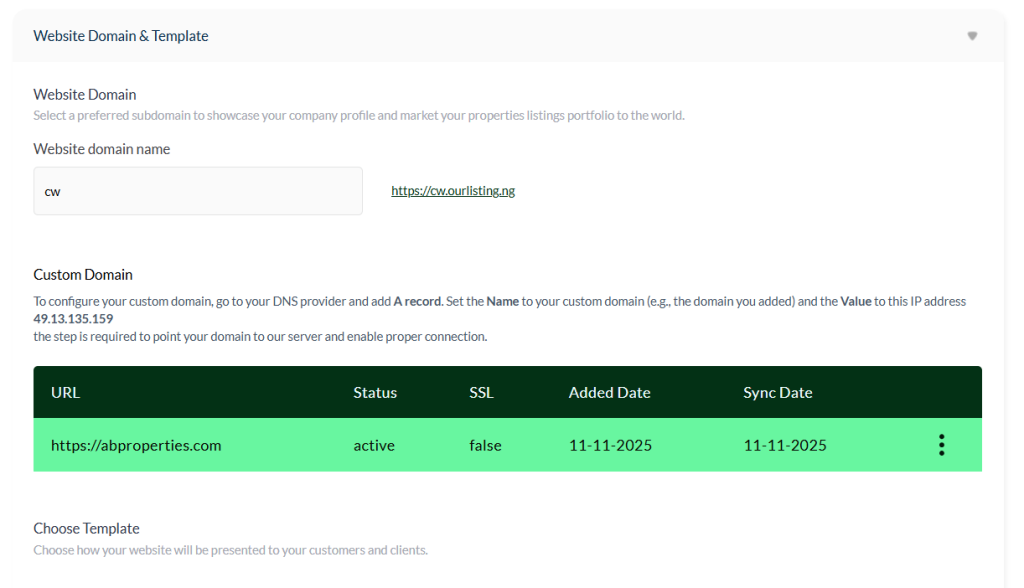
Website Domain & Template Setup #
Website Templates #
The Website Template section allows you to choose a design style for your company’s listing website. Each template comes with a unique layout and design suited to different brand preferences.
- You can preview each template before applying it to your website to see how it looks.
- Once applied, you can further customize colors, pages, and layout under the Website Pages & Color Scheme section to match your brand identity.
- The first template is free to use, but only subscribers can switch between or access additional templates.
Tip: Choose a design that best represents your brand and makes navigation easy for your clients and visitors.
Website Domain #
Your website domain is the web link used to access your company’s listing website. It also allows your staff to log in directly to your company dashboard.
You can edit the domain name to match your preference, or connect your own custom domain for a more personalized brand experience.
Using a Custom Domain #
If you already own a domain or have purchased one from a provider, you can connect it easily by following these steps:
- Go to your DNS provider’s settings.
- Add a new A Record.
- Name: Your custom domain (e.g., yourcompany.com)
- Value: 49.13.135.159
- Save your changes and wait up to 48 hours for the connection to sync with your company dashboard.
If your custom domain does not take effect after 48 hours, contact your Account Manager, request a callback, or email [email protected] for assistance.
Note: Setting up a custom domain helps strengthen your brand identity and makes your company website easier for clients to find.Saving and Applying Changes
Any update or modification made to your company listing website settings may take 40 seconds to 3 minutes to reflect, depending on your browser and internet speed.
After making changes, allow a few moments before refreshing the page to see the updates take effect.
How to Save Changes #
- After editing any section, click the “Update” button to apply the changes across your company dashboard and website.
- Once the update is successful, a confirmation email will be sent to your registered company email address to acknowledge the change.
Important Note #
⚠️ Changes will not take effect until you click the Update button.
Always save after each edit to ensure your company information stays current and visible across the platform.


