👋 Welcome to Expences
Here, you can manage, record and track all fund releases from your company to the property management cost.
Already know your way around? You can skip the tour anytime.
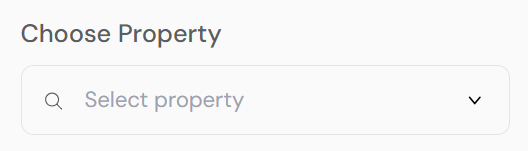
Property Selection Overview
Select the property for which you want to record the disbursement payment. This action links your entry to a specific property and its associated units, ensuring accurate financial tracking.
If the property you’re looking for isn’t listed, please verify that it has been properly added to the system under Management > Property before proceeding.
Unit Selection Overview
Select the specific unit or any applicable unit within the chosen property to record the disbursement payment. This ensures the transaction is accurately linked to the correct unit in the property’s financial records.
The list of available units will be automatically filtered based on the property you selected.
If you don’t see the unit listed, please ensure it has been created under Management > Units for the selected property before continuing.
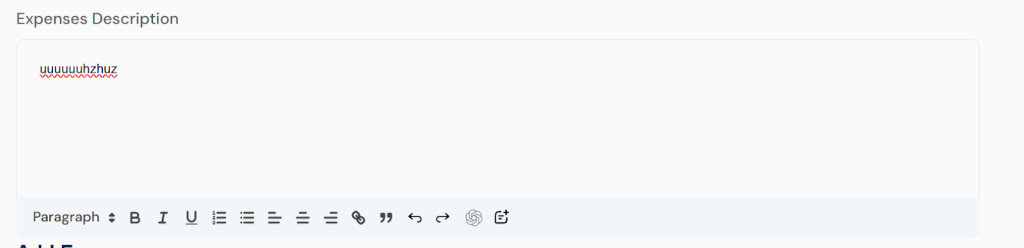
Expenses Details Overview
Enter clear and accurate information for the expense you’re recording. Include a brief but specific description that outlines what the expense covers. This helps ensure transparency and proper tracking within your property’s financial records.

Add Expenses Overview
Provide a concise title that summarizes the nature of the expense. This title will be used to identify the expense in reports and records, so ensure it is specific and relevant – for example, “Plumbing Repairs” or “Generator Maintenance.”
Add Expense Amount
Enter the exact amount spent on this expense. This figure should reflect the total cost incurred and will be used to update the financial records associated with the selected property or unit. Be sure to input the value accurately to maintain financial integrity.
Add Payment Button #
Click this button to record the payment title and amount you’ve entered in the fields above: You can click this button multiple times to add several payment records as needed.
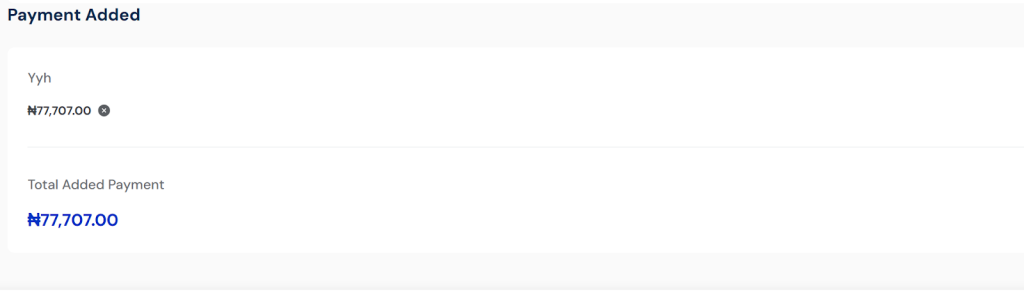
Payment Overview
This section updates the expense records linked to the selected property or unit. All expense amounts added displayed here and automatically accumulated for accurate tracking. You can also remove any entry before final submission.
Review the total expense balance, continue adding more entries if needed, or proceed to finalize. After submission, you can still manage or edit the records from the expense management section.
Create Button
Click this button to finalize and save all the payment records you’ve added. It will generate and store the complete payment entry linked to the selected tenant unit.


