Take an Explanatory Tour! #
This guided walkthrough will show you how to create and manage inventory for your units.
Inventories are added on one unit at a time, and should be completed before a unit is let out – as inventory cannot be modified after letting.
Be sure to record all necessary items to ensure smooth and efficient property management.
Already know how it works? You can skip the tour at any time.

Video Link (Optional) #
For better record-keeping and easier comparison after a tenant or occupant moves out, we recommend creating a video of all inventory items. Upload the video to YouTube and paste the link here.
This step is optional, you may choose to capture only photos, or include both photos and video for more detailed documentation.
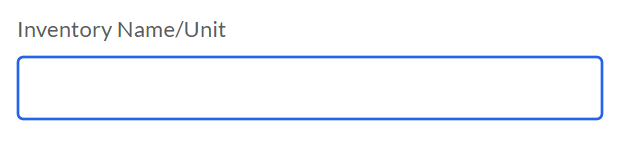
Name Your Inventory Item #
Enter a name for the inventory item you want to record. Choose a name that is easy to remember, such as the actual item name (e.g., Refrigerator, Prepaid Meter, Washing Machine, etc.) or any label that helps you identify it quickly later.
This name will help you track and organize your records efficiently.
Enter Quantity
Specify the number of units for the inventory item you’re recording.
This helps accurately track how many of each item (e.g., 2 chairs, 1 refrigerator, 3 light bulbs) are present in the unit.
Be as precise as possible for effective inventory management.
Inventory Condition
Choose the option that best describes the current condition of the item you’re recording.
This helps ensure accurate documentation for future reference and inspections.
Upload Inventory Pictures
Please ensure you have already taken clear photos of the inventory item on your device.
You can upload up to 6 pictures per inventory record. For better documentation, we recommend capturing the item from different angles to help with future reference or clarification.
📌 Tip: Use lightweight image files, as large images may take longer to upload or render.
Add More Button
Use the “Add More To Inventory” button to create additional inventory records for the unit.
You can click it as many times as needed to capture all items within the property unit.
This ensures every item is properly documented in the inventory.
Delete Inventory Record #
Click this button to permanently remove all recorded inventory items from the list.
⚠️ Warning: This action cannot be undone.
Please confirm you want to delete before proceeding.
✏️ Update Inventory Button
Click this button to save the details of the recorded inventory item(s).
You can update item names, quantities, conditions, and attached photos as needed.
Remember to update your changes to maintain accurate and up-to-date records.


