This walkthrough will help you create Property details, Unit details, property listing, and Management detail, step-by-step, ensuring all necessary details are included for efficient property management.
Property Picture Overview
Upload clear, high-quality images to visually represent the property for easier recognition within the platform. While not mandatory, adding pictures improves internal management and reference. You can upload up to 6 images and drag your preferred photo to the first position to set it as the default display image.
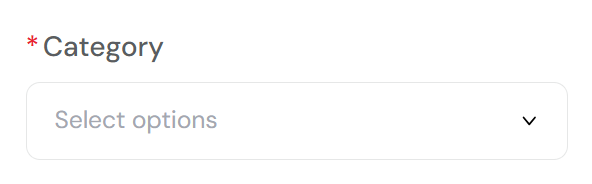
Category Overview
Review and, if needed, update the category that best describes the type of your management. This classification affects how the property is managed and determines which features are available on the platform.
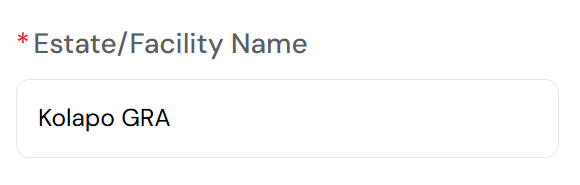
Property Name Overview
Edit the property’s name as it should appear on your dashboard and listings. A clear and specific name such as a known identifier, property type, or estate name – helps distinguish it from others, especially when managing multiple properties.
Examples: “Kolapo GRA” or “Ikoyi Complex.”

State Selection Overview
Ensure the selected state accurately reflects the property’s location. This field filters available Local Government Areas (LGAs) and influences City/Area options, supporting precise location tracking across your portfolio.
Street Name/Number Overview
Update the specific street name and number to pinpoint the property’s exact location. Keep the entry clean, exclude LGA, city names, or special characters.
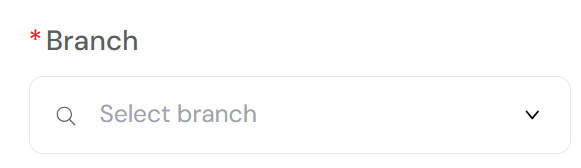
Branch Selection Overview
Verify or reassign the property to the appropriate branch. This is essential for reporting, staff coordination, and property grouping across regions.
To edit branches, go to: Management > Staff & Branches
Account Manager Overview
Update the assigned Account Manager responsible for the property’s finances and daily oversight. This role is critical for tracking income, approving expenses, and maintaining accountability. The selected individual must already exist in your system under Management > Staff & Branches.
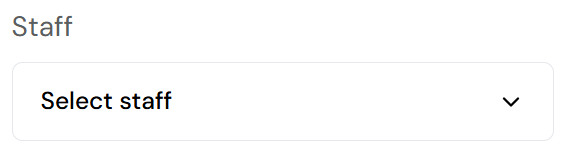
Staff Assignment Overview
Review and update the staff members linked to the property’s operations. This may include supervisors, agents, or maintenance personnel. Proper assignment enhances communication, task tracking, and on-site accountability.
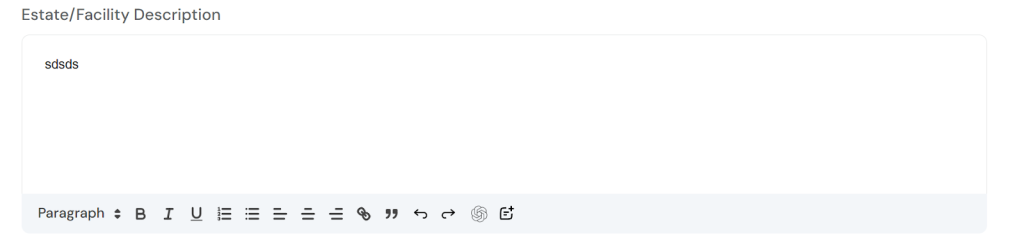
Property Description Overview
Refine or revise the property’s description to summarize key features, amenities, and layout. A compelling description enhances internal clarity and improves public-facing listings.
Need help? Use the AI content generator or AI content editor—available via the last two icons in the description field.
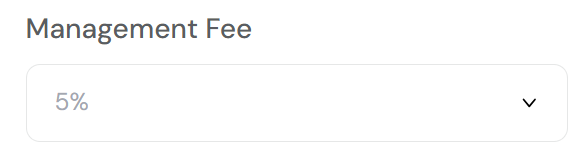
Management Fee
Update the agency fee percentage charged for managing the property. Accurate entry supports transparent billing for services like tenant placement and property oversight.
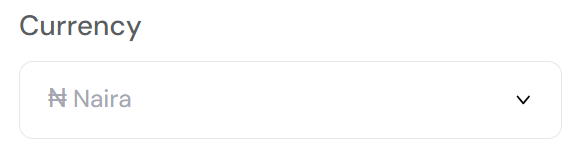
Currency Selection Overview
Select or update the default currency for financial transactions.
Options: Naira (₦), Dollar ($), Pounds (£)
Correct currency selection ensures consistency in accounting and reporting.
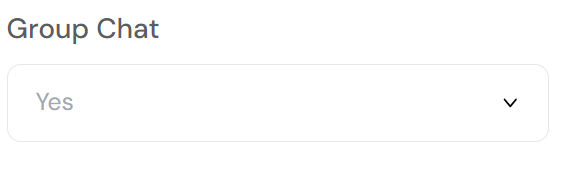
Group Chat Option
Toggle this setting to allow or restrict group communication for tenants and staff.
Yes: Automatically create a group chat for collaborative discussions.
No: Limit interactions to private or direct messages.
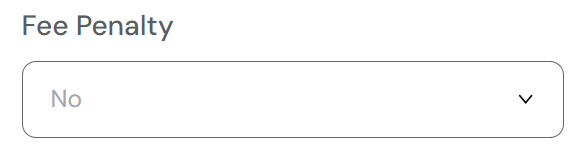
FeePenalty Option
Enable or disable late payment penalties.
Yes: Apply charges when rent is overdue.
No: Disable penalties for flexible payment handling.
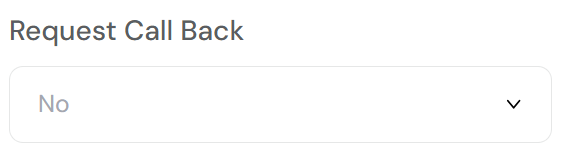
Request Call Back Option
Choose whether tenants or prospects can request a call back via the platform.
Yes: Allow prompt follow-ups.
No: Use alternative communication methods.
Book Visitors Option
Manage visitor access by enabling this feature. Ideal for secured estates or facilities.
Yes: Allow tenants to pre-register visitors.
No: Disable if managed offline.
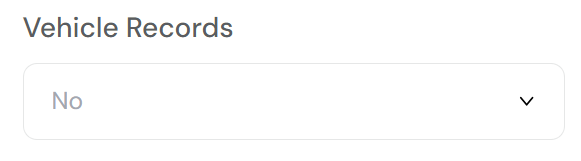
Vehicle Records Option
Track vehicles linked to tenants or residents.
Yes: Record plate numbers and types for security or parking management.
No: Disable if vehicle tracking isn’t required.
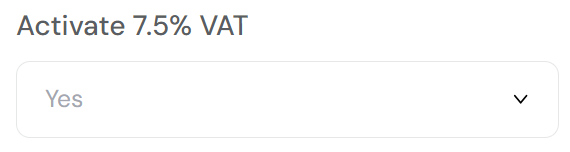
Activate 7.5% VAT Option
Choose whether to apply 7.5% VAT on relevant transactions.
Yes: VAT is automatically calculated where applicable.
No: Omit VAT from billing.

Action Button Overview
Any changes made will not be saved unless you click the Update button.
To apply your edits, click Update – this ensures all modifications are saved and reflected across the platform in real time, keeping your property data accurate and up to date.
Action Button Overview
Add More Units: Use this option to add duplicate unit details for creating multiple similar units. Selecting “Yes” will replicate the filled form data for the number of units specified. Choose this only if the new units share similar attributes. Selecting “No” will open a fresh form for unique entries.
Save: Apply all changes and update the property and its units. After saving, you will be redirected to the property page where you can continue editing, add more units, or delete entries as needed.
Note: All mandatory fields must be correctly completed to enable adding or updating units.
Unit Not Yet Updated!
These unit details were auto-generated based on the number you selected for duplication and have not been fully completed or saved yet. Please review and update all required information to ensure accurate management and proper listing on your dashboard.
Make sure to upload the correct pictures for each unit, complete all necessary fields, and click the Update button to save your changes and add the unit to the property list. Use the Remove button to delete the unit card if needed.
Incomplete units will not be published or available for tenant assignment. The platform cannot store or process units without updated and accurate details, including the exact unit pictures.


